LS25 AgraGPS V1.1.0.0

LS25 AgraGPS V1.1.0.0
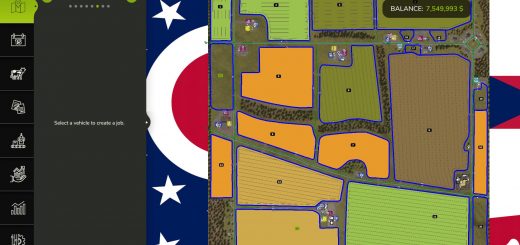
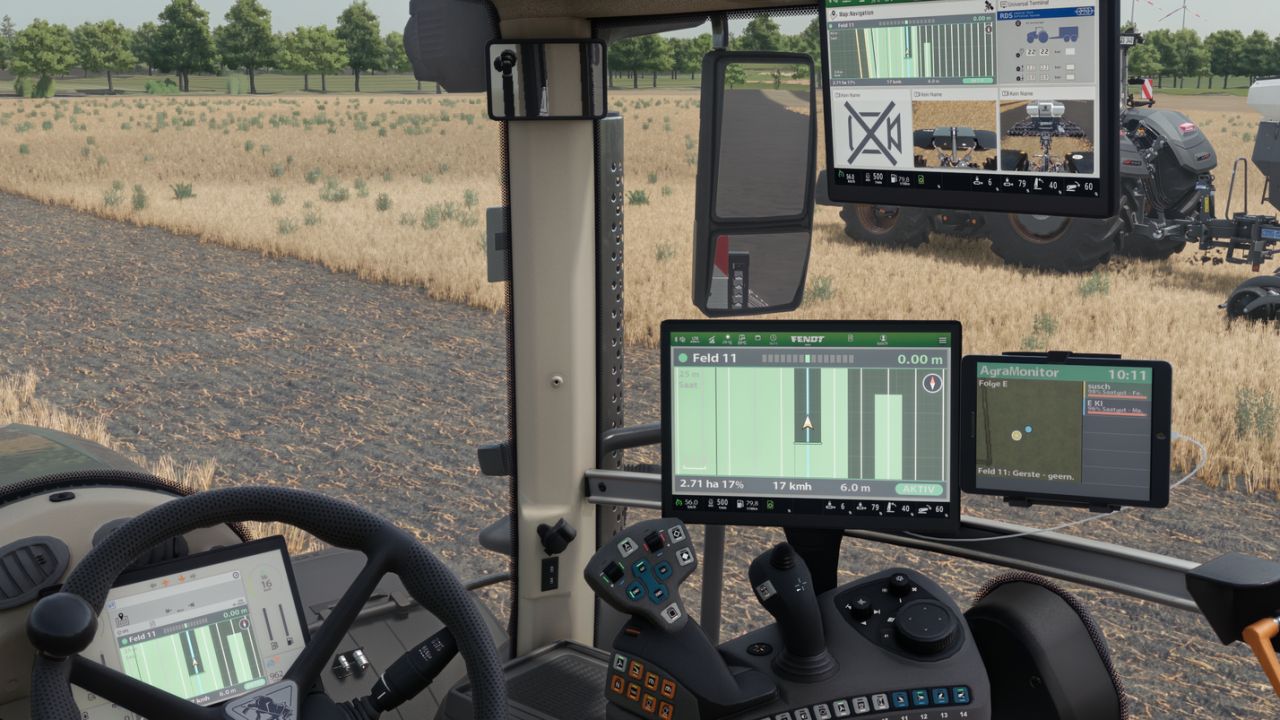
AgraGPS expands Farming Simulator 2025 with an optional GPS screen and a user interface for managing courses.
What does AgraGPS offer for pre-configured vehicles?
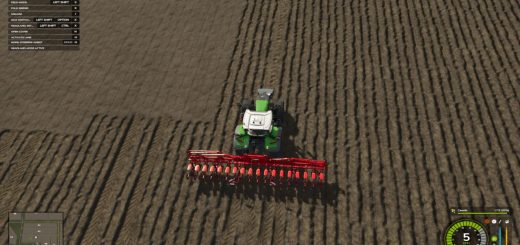
A full lane guidance screen that displays the lane guidance lines completely.
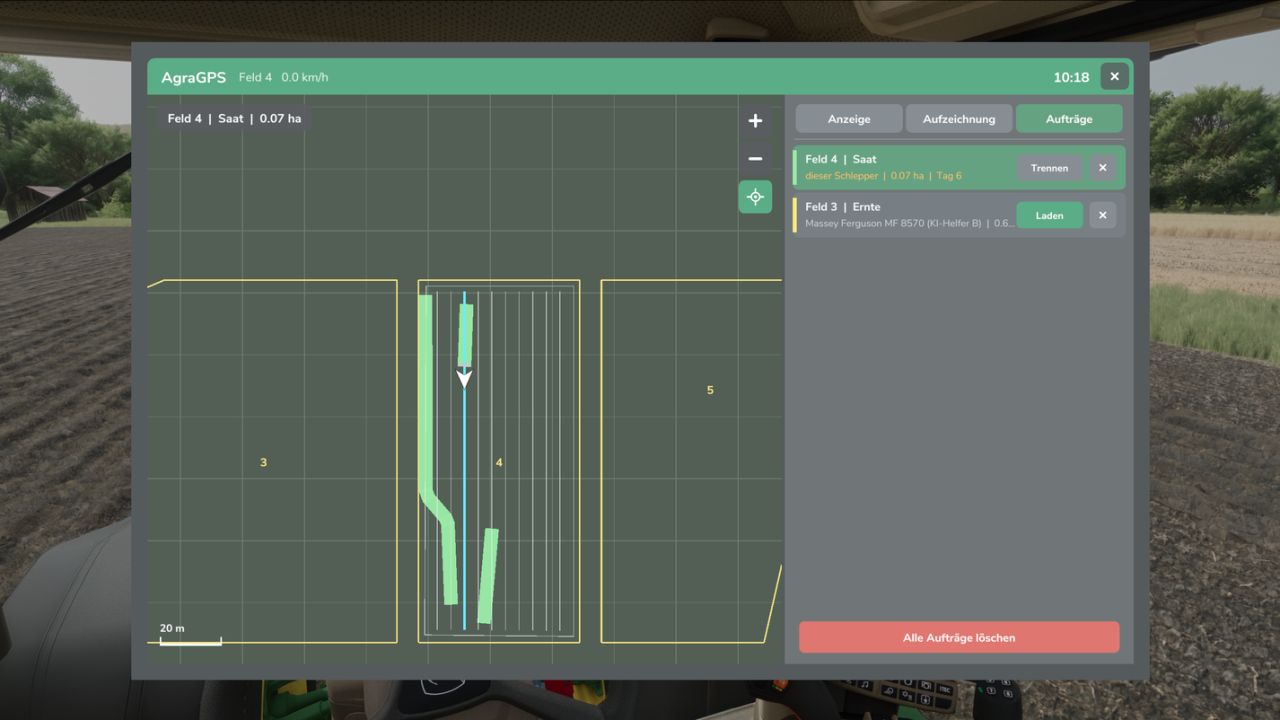
The area worked by the attached device is displayed and recorded, so that the area worked can still be seen even after saving or leaving the field when work is resumed.
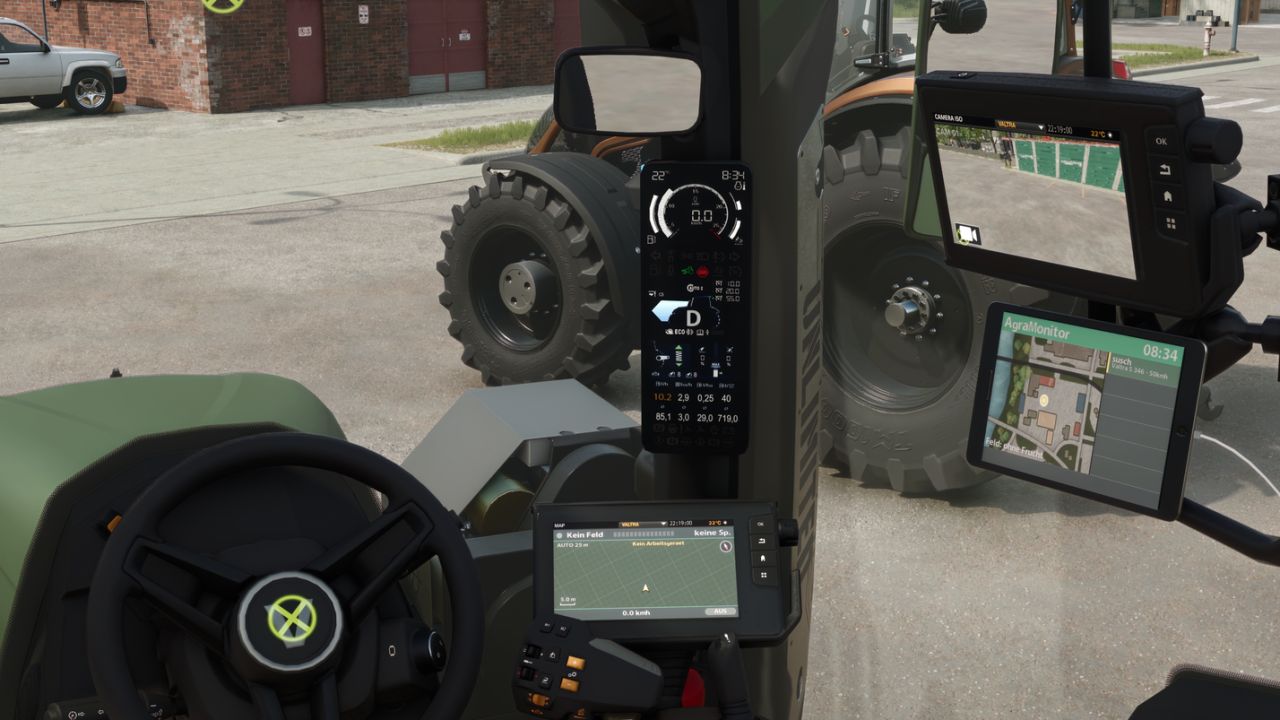
Optional GPS terminal screen for the cabin.
Multiple screens are possible and can be operated separately.
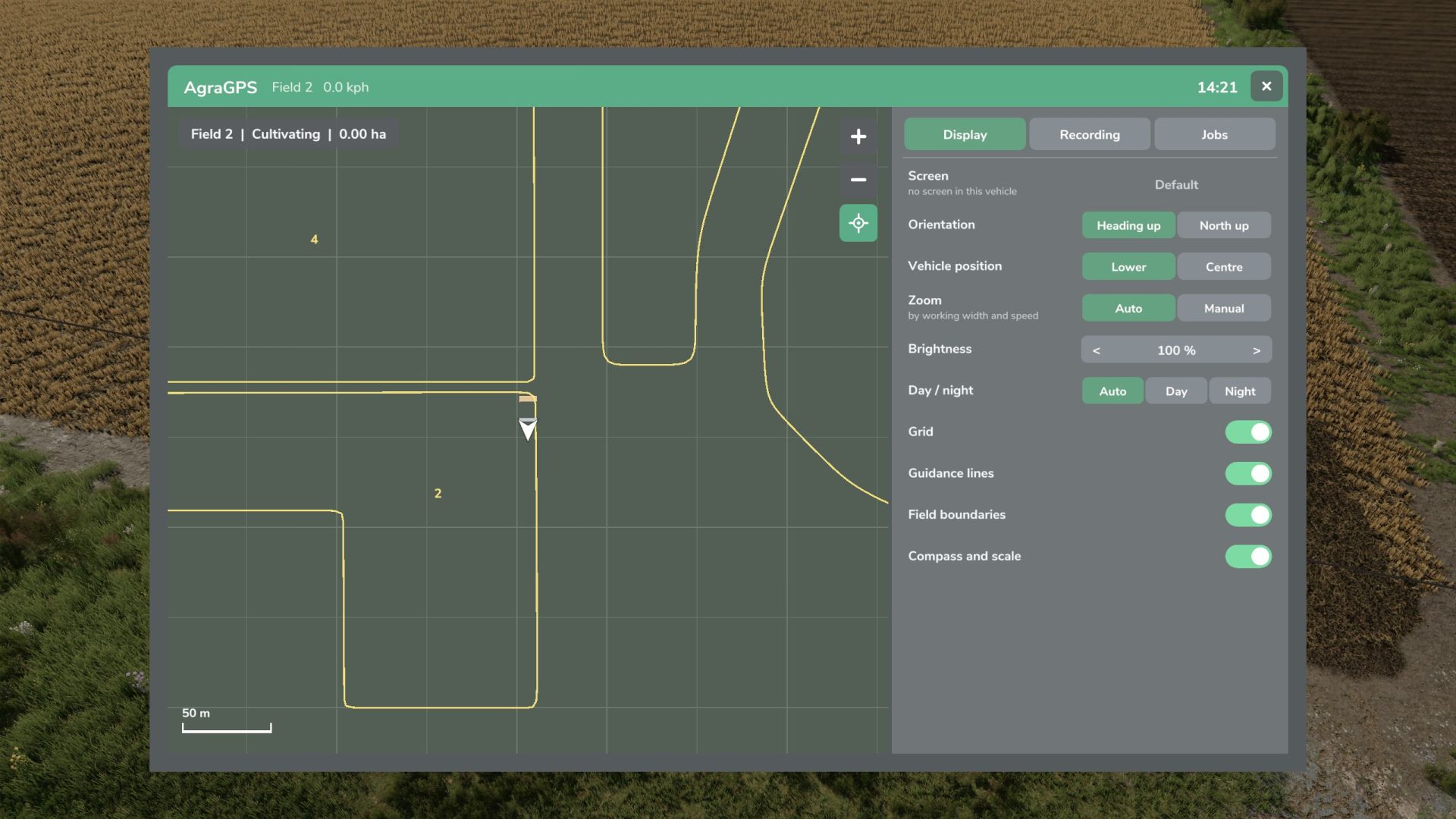
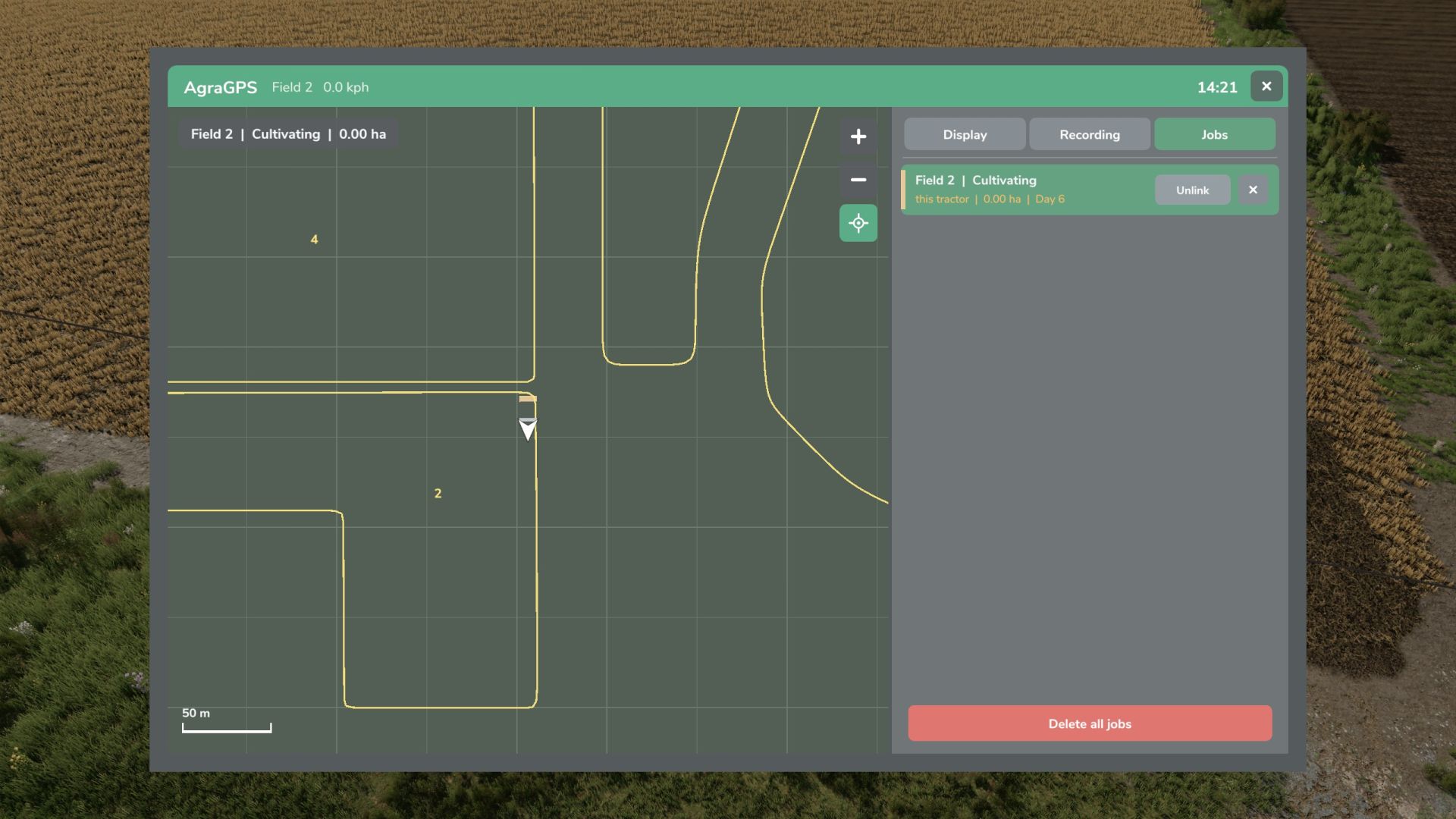
The display shows the worked area, field boundaries, and the steering assist lines.
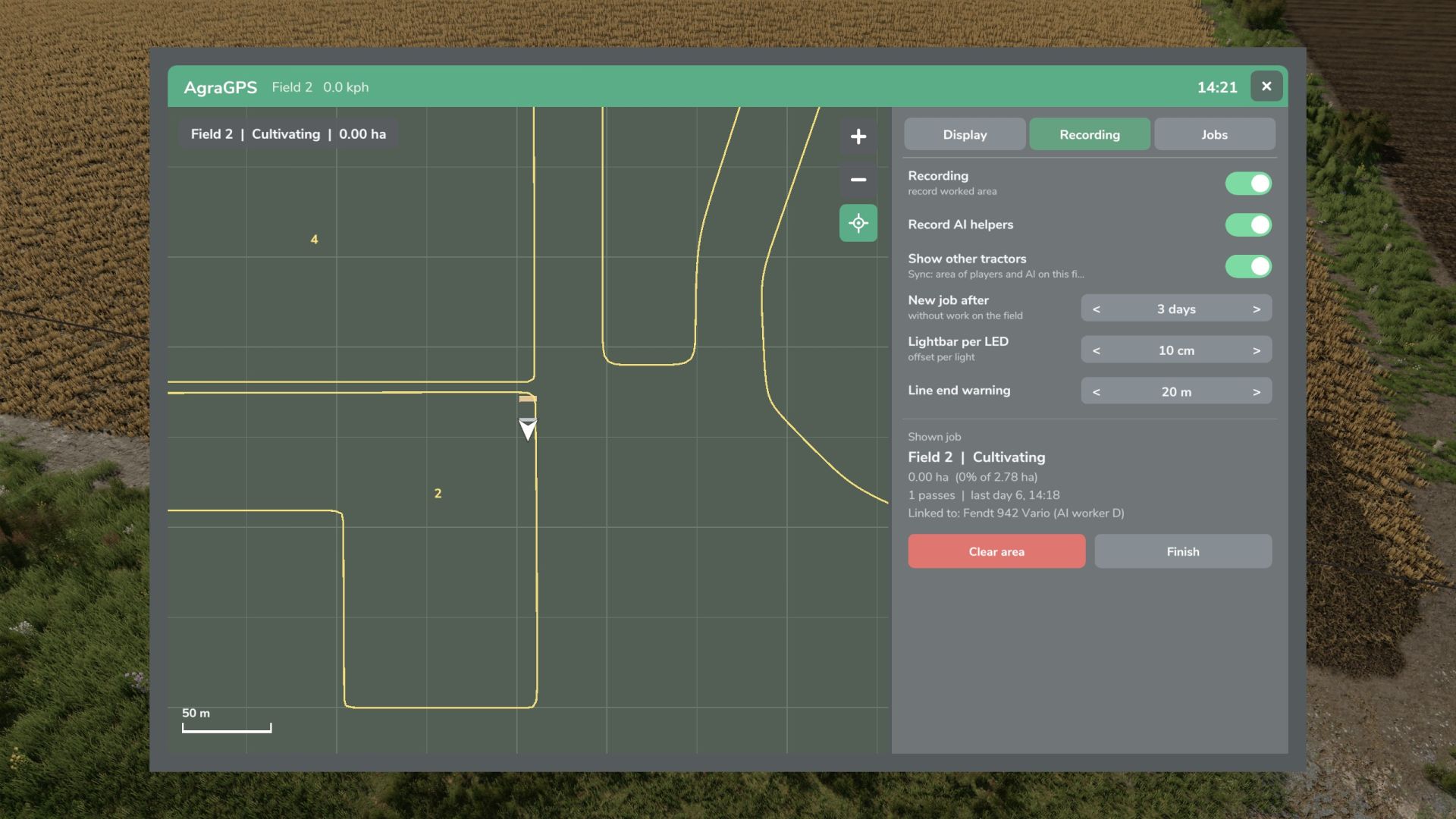
Recording of the worked area.
Recording per field and work type, linked to the tractor and loadable for other tractors, also for AI helpers and players in multiplayer.
Terminal with overview map and extensive settings: Opens with “Alt left + G” (can be changed in the control menu)
V1.1.0.0
Fixes:
Combined fields are now recorded as a single entry. It will then be named, for example, Field 3 + Field 4, etc.
Free space between two combined fields is now also recorded.
Fix for excessively large font sizes in the screens, where attributes could no longer be read.
Problems with the sync function for two tractors in one field. This function has been removed.
New:
GPS window added for vehicles without a screen or external view player. Adjustable like the screens via the GPS menu. Opens with “Alt left + H” (changeable in the control menu).
The GPS window can be docked left, right, top, or bottom and resized via the GPS menu.
GPS screen and window colors can be personalized via the GPS menu and are linked to the vehicle type.
Recording of worked areas revised. Shared recording only occurs if two tractors have the same recording loaded.
AI helper recording can now be enabled separately for each helper.
Automatic deletion after X days removed.
The screen can now be operated without text and LED strip attributes. To do this, set the attribute value “onlyMapLayer” to “true” in the XML file.
Note on the recording process:
A field recording always starts, regardless of the task being performed in the field, even without active guidance.
When you start a task in the field, recording starts automatically and your vehicle is linked to the recording.
If an AI helper or other player wants to perform the same task in the field, they must load the existing recording. Both vehicles will then record the work in the recording.
If the AI helper or other player does not load the recording, a new recording will start, even if the task is the same.
After completing the field, the task should be completed (in the GPS menu). The task will then be saved and can be accessed later (to see if the entire area has been worked).
Once an area is completed, it can no longer be loaded, only viewed and deleted.
Incomplete areas can be loaded into a vehicle at any time.