LS25 Mouse Click Actions V1.0.1.0


LS25 Mouse Click Actions V1.0.1.0
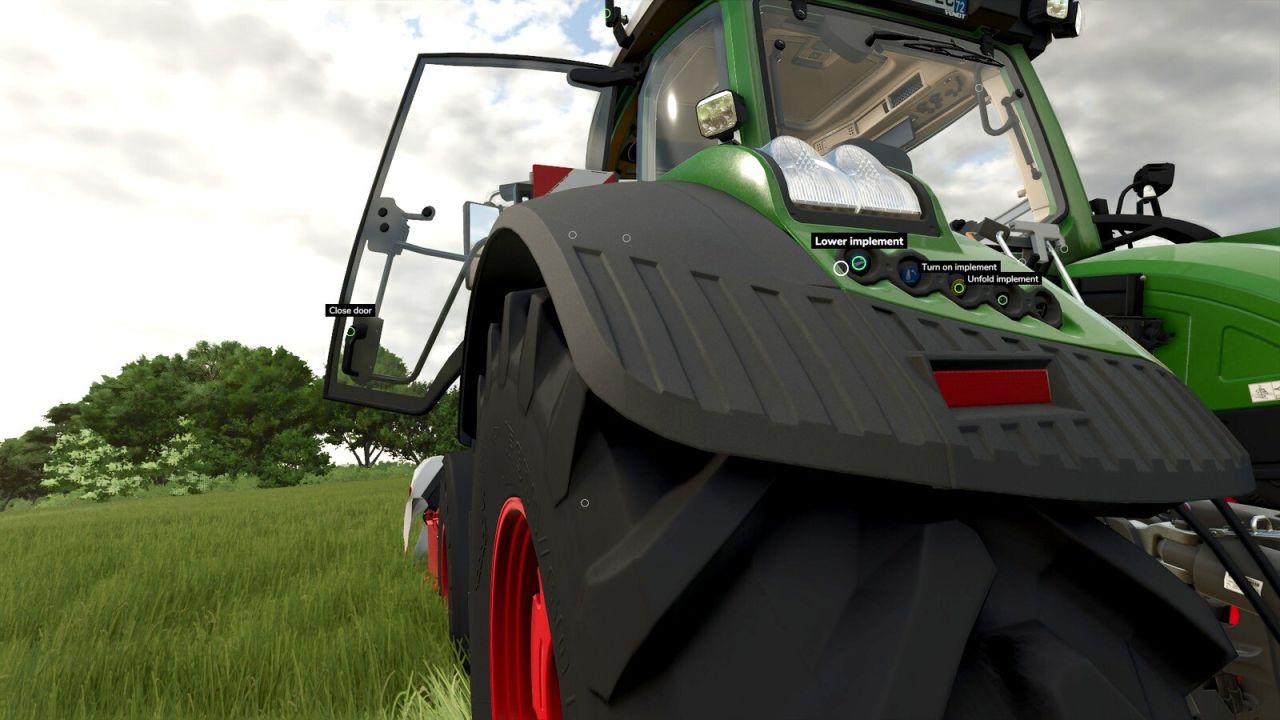
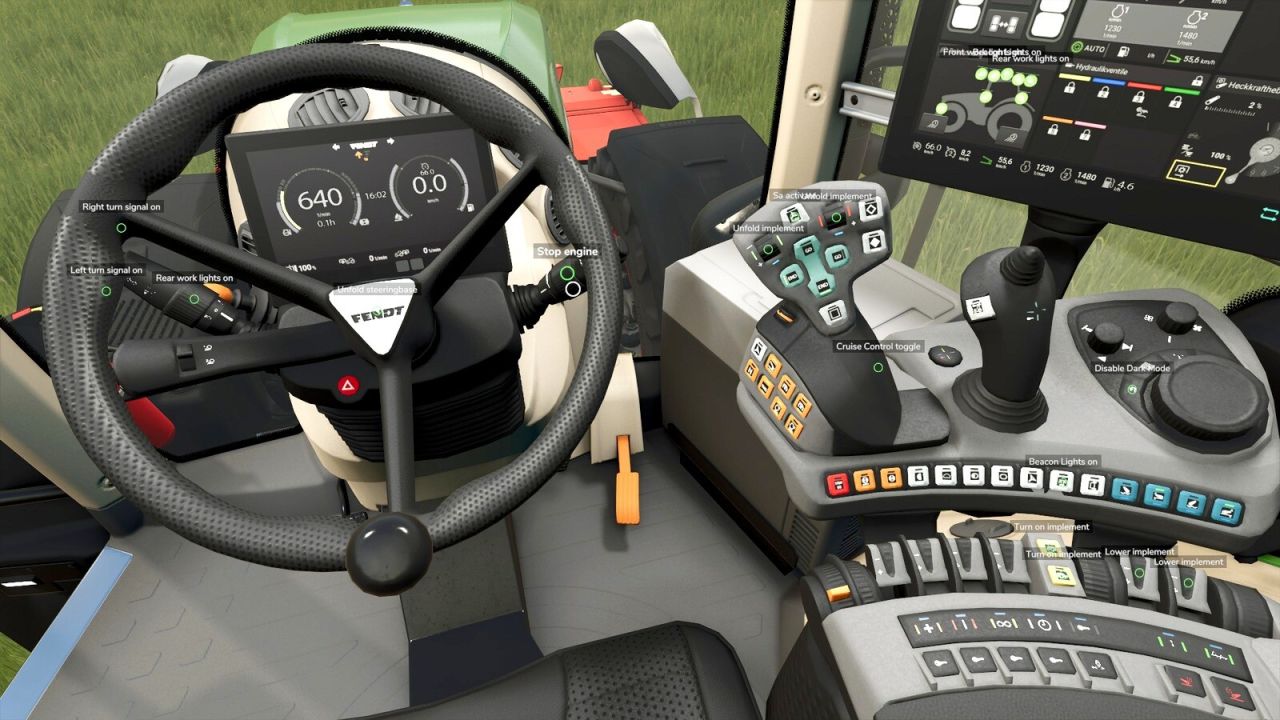
Mouse Click Actions lets you click a vehicle’s controls with the mouse: doors, windows, lights, beacons, the ignition, lifting and lowering, folding and switching implements on. It reads the interaction points that vehicles carry for Interactive Control.
WITHOUT INTERACTIVE CONTROL:
Holding R freezes the view and frees the mouse cursor. Releasing R returns to normal looking and head tracking.
A short tap on R still does what R does in the game.
Clicking an interaction point triggers it, in the cab and on foot next to the vehicle.
The mouse wheel zooms in while R is held.
With head tracking (TrackIR, Tobii, opentrack), you aim with the cursor while the view stays still.
Out-of-reach points are gray. Points for an implement that is not attached stay hidden.
Doors, windows, hoods and other parts you open with a click keep their position when you save and reload, and players who join later see them as they are.
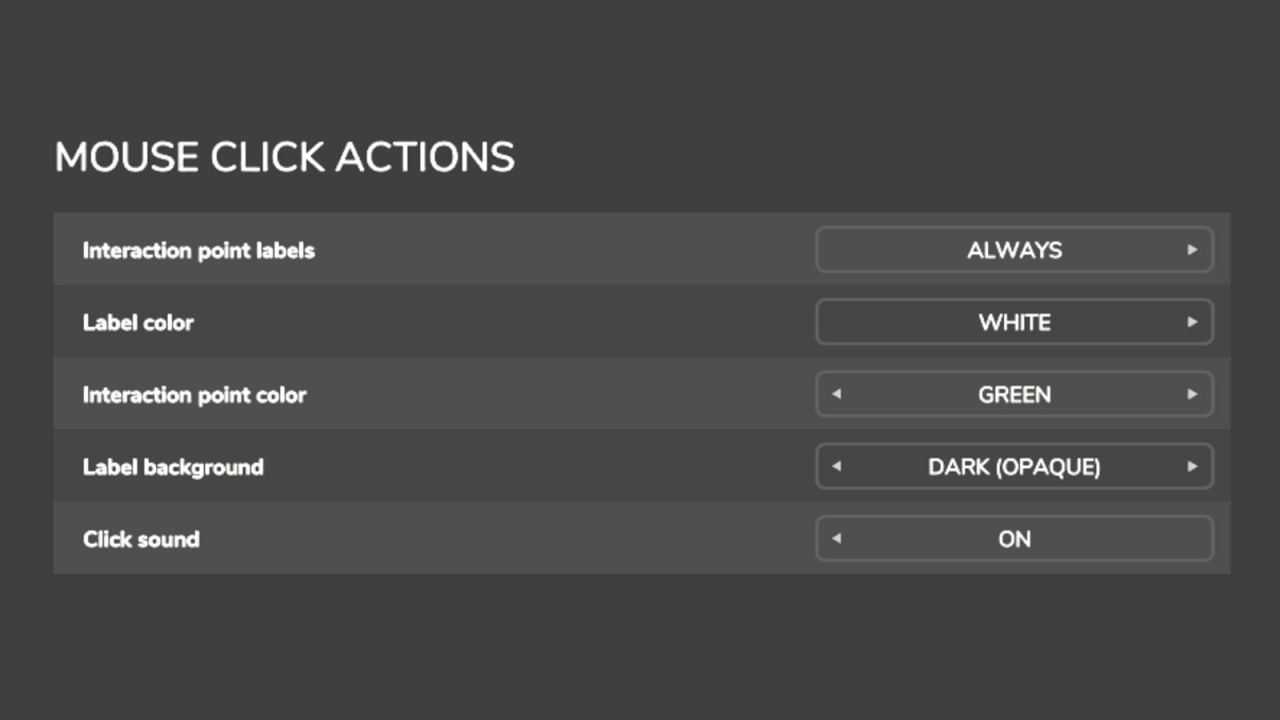
Settings for labels, label and point colors, a label background and a click sound.
Settings for message size, color, background and position, and the warning style.
WITH INTERACTIVE CONTROL:
Mouse Click Actions adds text labels to Interactive Control’s interaction points and leaves every interaction to Interactive Control.
The labels show when Interactive Control shows its points.
The settings that only apply without Interactive Control are grayed out.
IN BOTH CASES:
Right Ctrl + F12 opens the Kijbev help panel with the keys of every active Kijbev mod.
WORKS ON:
Vehicles whose files include Interactive Control interaction points, which many mod vehicles do.
V1.0.1.0
Doors, windows, hoods and other parts opened with a click retain their position when you save and reload, and players who join later see them in the same state.
Right Ctrl + F12 opens the Kijbev help panel.
Settings for the size, color, background and position of the message, as well as the warning style, displayed when an action requiring the engine to be running is clicked.
With Interactive Control, labels are displayed only where Interactive Control shows its points.