LS25 Density Layer Installer V1.0.0.0
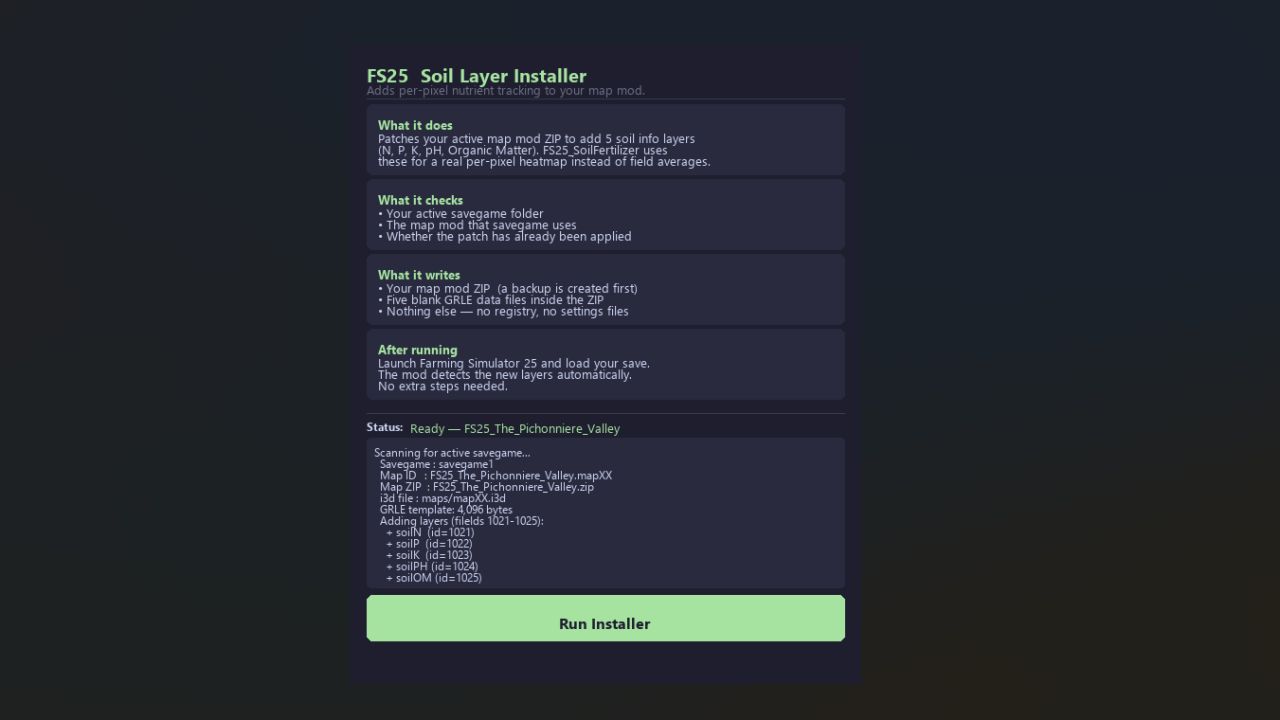

LS25 Density Layer Installer V1.0.0.0
FS25 SoilFertilizer — Density Layer Installer
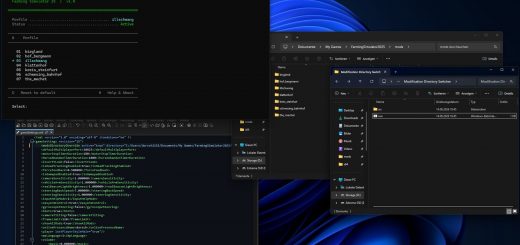
QUICK START (no technical knowledge needed)
1. Download FS25_SoilLayerInstaller.exe
2. Close Farming Simulator 25 completely.
3. Double-click the .exe — click “Run Installer”.
4. Launch FS25 and load your save. Done.
That’s it. The installer finds your savegame and map automatically, backs up your map ZIP, and patches everything in one click.
WHAT IT DOES
Patches your active map mod ZIP to add five custom soil density-map
layers (soilN, soilP, soilK, soilPH, soilOM). Once the layers are
present, FS25_SoilFertilizer can track nutrients at true per-pixel
resolution instead of one average value per field.
Without the patch: every pixel inside “Field 3” shares one nitrogen value.
With the patch: each pixel holds its own value, so spraying half a field gives a real left/right split on the map overlay.
REQUIREMENTS
– FS25 closed when you run the installer (ZIP files must not be locked)
– The map mod ZIP installed in your Mods folder
– At least one career save using that map
BACKUP & RESTORE
A backup is created automatically before any changes:
<mapname>.zip.backup_soilinstaller
To undo the patch:
1. Close FS25.
2. Rename the .backup_soilinstaller file back to the original .zip
(remove the .backup_soilinstaller suffix).
3. Launch FS25 — the soil layers are gone.
ALREADY PATCHED?
Re-running the installer on an already-patched map shows “Already Patched”
and does nothing. Safe to run again at any time.
To force a re-patch, restore the backup first, then run the installer again.
SUPPORTED MAPS
Any FS25 map mod that:
– Ships as a single ZIP in the Mods folder
– Has its main i3d file at maps/mapXX.i3d inside the ZIP
– Stores terrain data files at maps/data/ inside the ZIP
Tested on: The Pichonniere Valley (FS25_The_Pichonniere_Valley.zip)
NOTES & CAVEATS
– FS25_SoilFertilizer must be version 2.2.5.0 or later to detect the layers.
– On maps that already ship layers named soilN / soilP / soilK / soilPH / soilOM, the installer detects them and skips — the mod uses them as-is.
– The blank GRLE files are a safe starting state (all zeros). FS25_SoilFertilizer fills them in automatically as you spray and harvest.
– Multiplayer: all clients must use the patched map ZIP for consistent results.
TROUBLESHOOTING
“No savegame found”
Make sure you have at least one career save in:
Documents/My Games/FarmingSimulator2025/savegame1
“Map ZIP not found”
The map mod name in your savegame does not match any ZIP in your Mods
folder. Confirm the map mod is installed and try again.
Minimap not showing soil colors after load
Wait a few seconds — the overlay rebuilds on a 2-second cycle.
“Partial success” result
One or more layers may be missing. Restore the backup, report the
issue (attach the installer log), and do not load FS25 until confirmed.
ADVANCED / CLI USE
If you prefer the command line, the original Python script is also included:
python SoilLayerInstaller.py
Requires Python 3.8 or later. Same logic as the GUI, output in the console.
Required mods:
Realistic Soil & Fertilizer